Walk-up honor boxes are the heart and soul of roadside farmstands. For decades, a locked metal cash box bolted to a table was all you needed. Today, however, more than half of commuters and weekend shoppers don't carry exact cash in their wallets—especially when they spot your "Fresh Eggs" or "Sourdough" sign unexpectedly on their drive home.
Many stand owners tape a handwritten Venmo username or Cash App $Cashtag inside their shed. While that helps, typing a long username with underscores or hyphens on a phone screen in a gravel driveway often leads to typos, lookalike accounts, or abandoned purchases.
On roadside.market, you can turn your stand's payment badges into interactive, one-tap digital payment chips.
How Interactive Payment Chips Work
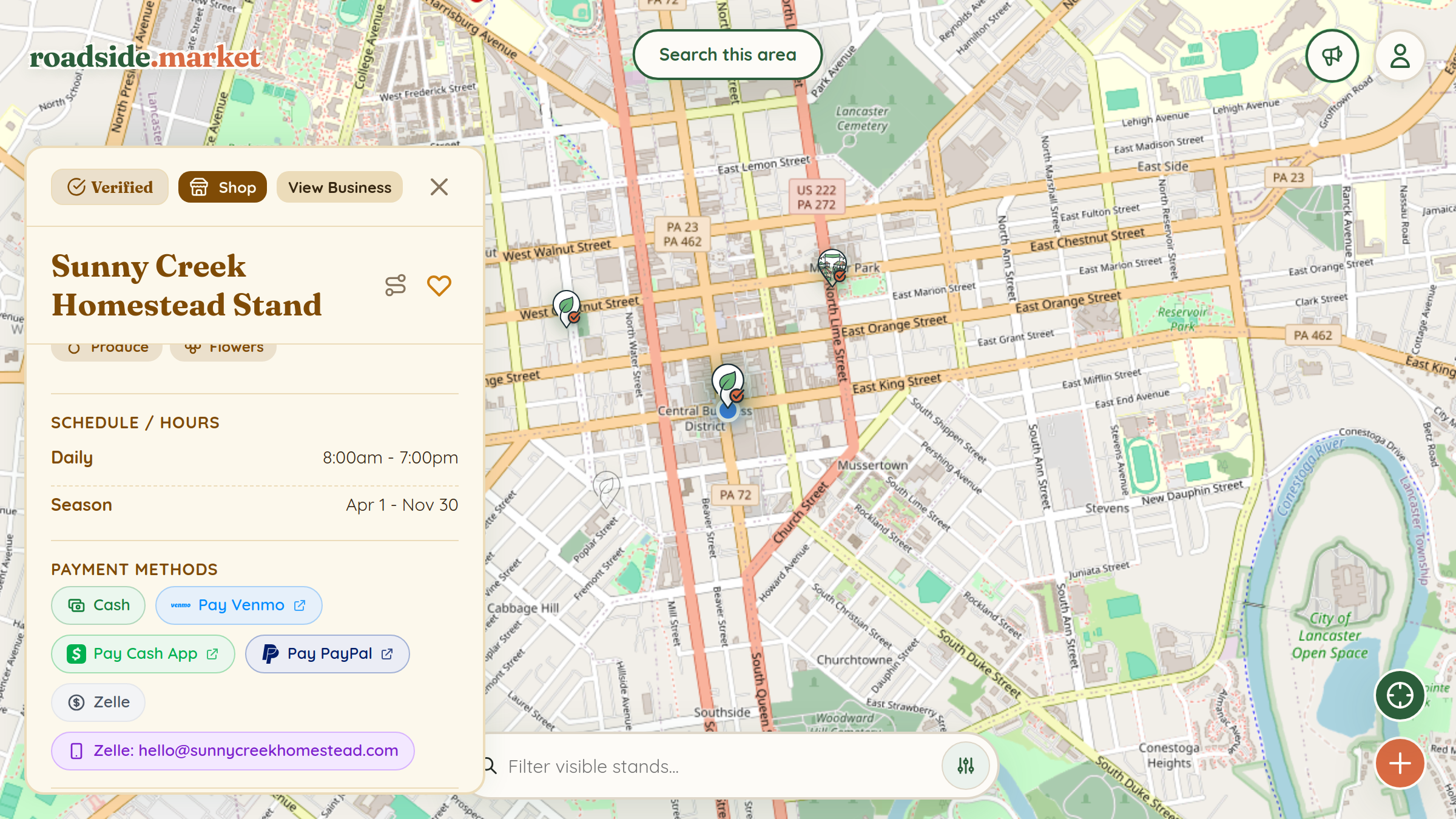
When a stand is an unverified community pin, its payment methods (like Cash, Venmo, Cash App) display as plain informational labels. The moment you claim your stand and add your payment handles to your Business Profile, those static labels transform into interactive buttons:
- Pay Venmo Chip: Tapping the chip opens
venmo.com/u/YourHandle(or launches the Venmo mobile app directly to your profile). - Pay Cash App Chip: Tapping the chip opens
cash.app/$YourCashtagstraight to your payment screen. - Pay PayPal Chip: Tapping the chip launches
paypal.me/YourHandlefor instant checkout. - Zelle Copy-Action Chip: Tapping the Zelle chip copies your registered phone number or email address to the buyer's clipboard with a confirmation toast so they never mistype a digit in their banking app.
Step-by-Step: Linking Your Payment Handles

- Sign in to your account and open the Business Manager from the User Menu.
- Click Settings in the left sidebar and stay on the Profile subtab.
- Scroll down to the Payment Methods Accepted section.
- Enter any combination of your handles:
- Venmo Username: e.g.,
@SunnyValleyFarm - CashApp $Cashtag: e.g.,
$SunnyValleyFarm - PayPal Username: e.g.,
SunnyValleyFarm - Zelle (Email/Phone): e.g.,
555-123-4567ororders@myfarm.com
- Venmo Username: e.g.,
- Click Save Business Profile.
Where Shoppers See Your One-Tap Chips
Once saved, your linked payment handles appear automatically across three places:
- Your Stand Details Drawer: Under the Payment Methods section whenever someone taps your pin on the map.
- The Built-In Stand Calculator: When a customer taps Calculator on your stand card to add up their items, your handles sit right at the top of the tally screen.
- Your Public Business Profile: Visitors browsing your farm page at
roadside.market/business/your-slugcan see every payment method you accept before they drive over.
Best of all, pairing your one-tap payment chips with a printable Stand QR Sign means customers only have to scan one QR code at your table to view your prices, tally their basket, and tap to pay.