When you're running a Weekly Bake Drop or a Saturday morning CSA harvest pickup, you have two completely different questions on two different days:
- On Prep Day (Thursday/Friday): "How many total Country Boules, Rosemary Focaccias, and Cinnamon Rolls do I need to mix, ferment, and bake across all 28 orders?"
- On Pickup Morning (Saturday): "Which specific items go into Sarah's bag vs. Mike's bag, and which orders have I already packed?"
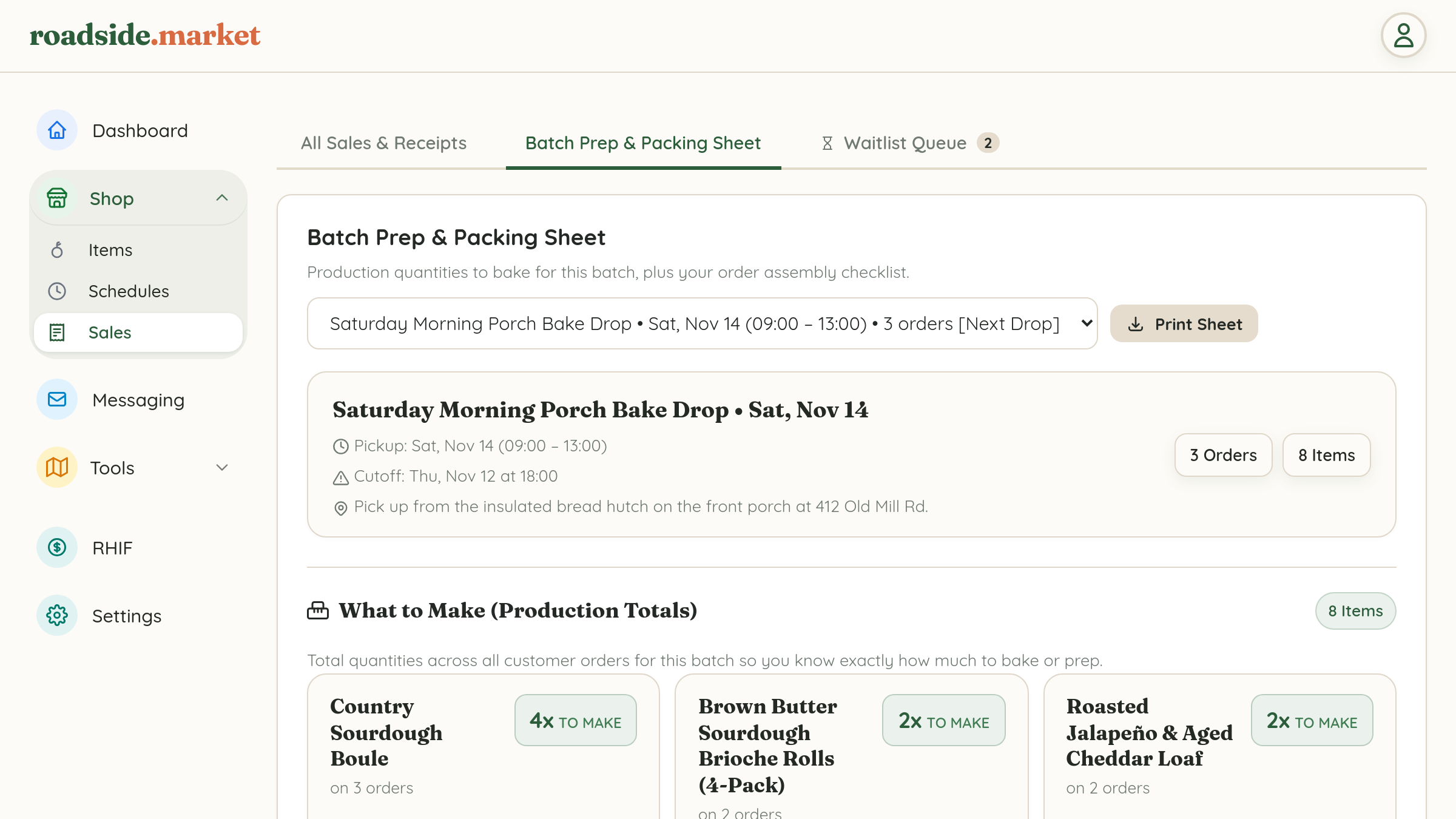
Instead of exporting CSV files or tallying orders by hand on a notepad, the Batch Prep & Packing Sheet inside Business Manager → Shop → Sales does all the math for you automatically.
Part 1: What to Make (Aggregated Production Totals)
At the top of the Batch Prep & Packing Sheet subtab, select your upcoming schedule from the dropdown. The What to Make (Production Totals) grid immediately calculates:
- Total Units Across All Orders: A top badge shows the total item count for the entire batch alongside individual product cards showing exact quantities to produce.
- Option Modifier Breakdowns: If 14 people ordered your Sourdough Boule—9 Whole and 5 Sliced—your production card shows the exact breakdown so nothing gets missed during prep.
Part 2: Order Packing & Assembly Checklist ("Who Gets What")

Once the loaves come out of the oven or the produce comes in from the field, scroll down to the Order Packing & Assembly Checklist:
- Live Packing Progress Bar: Watch your completion bar climb from
0%to100%as you check off each packed order. - Quick Filter Pills: Toggle between All Orders, To Pack (Unpacked), and Packed so you can focus strictly on the bags still left on your counter.
- Customer Notes & Payment Status: Each packing card displays the customer's name, itemized list, special pickup notes, and whether they already paid online or owe Cash/COD at pickup.
Part 3: One-Click Printable Kitchen Sheet
Prefer keeping flour-covered fingers off your phone or tablet while you work? Click the Print Sheet button at the top right of the Batch Prep view to print a clean, high-contrast paper copy for your kitchen counter or packing table.